
Info Button
Info buttons are great items to provide additional information within the app. There can be situations where the end user doesn't know exactly what to do, then you can provide help via an Info Button.
How to add an Info Button
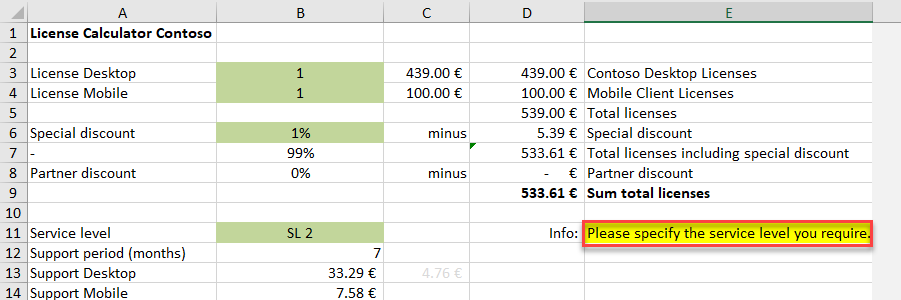
- Define a cell in the spreadsheet in which the text for the button is set.
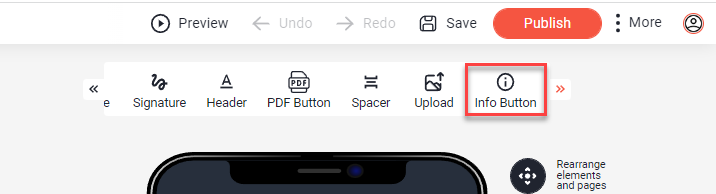
- Select the Info Button
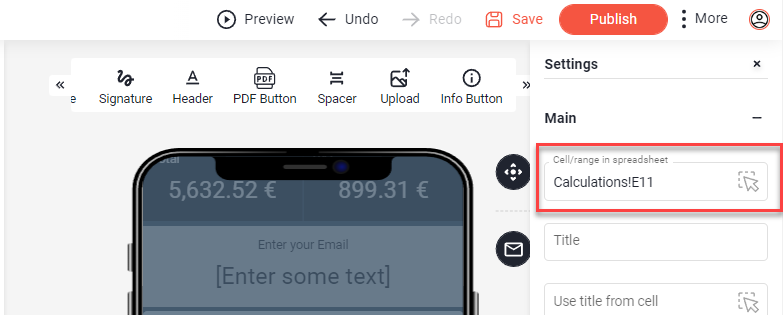
- Place the button where it should be and point the button to the cell containing the text.
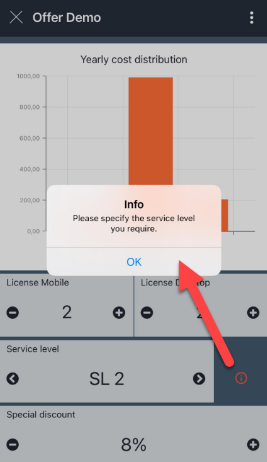
When the button is pressed by the end user in your app, the text from the cell will be displayed.
Was this article helpful?
Still stuck? Submit a request