
Update source file | Switch spreadsheet
You can upload a new version of your spreadsheet with new data or additional functionality. It is also possible to change the location of the source file.
In this article
- Update the source file of your app
- Change storage from Open as App Cloud to OneDrive/SharePoint
- Change storage from Open as App Cloud to Dropbox
- Change storage from Open as App Cloud to Google Sheets (Google Drive)
- Change storage from Dropbox/Google Sheet/OneDrive/SharePoint to the Open as App Cloud
Update the source file of your app
You can upload the new Excel file in the Open as App Cloud and basically override the initial source file.
Be careful with updating the spreadsheet. Changes to the spreadsheet (e.g. changing sheet names or moving cell entries) that are not made in the Editor cannot be detected automatically.
If the structure of the new file is different from the file you created the initial app with, you have to make additional changes regarding the assignment in the app elements.
- Open the Editor of your app.
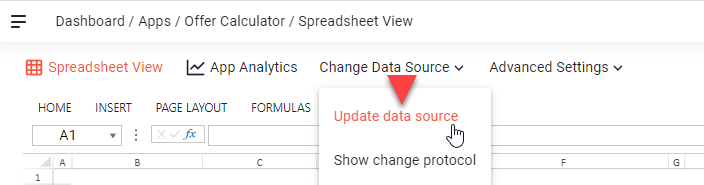
- Navigate to "Update data source".
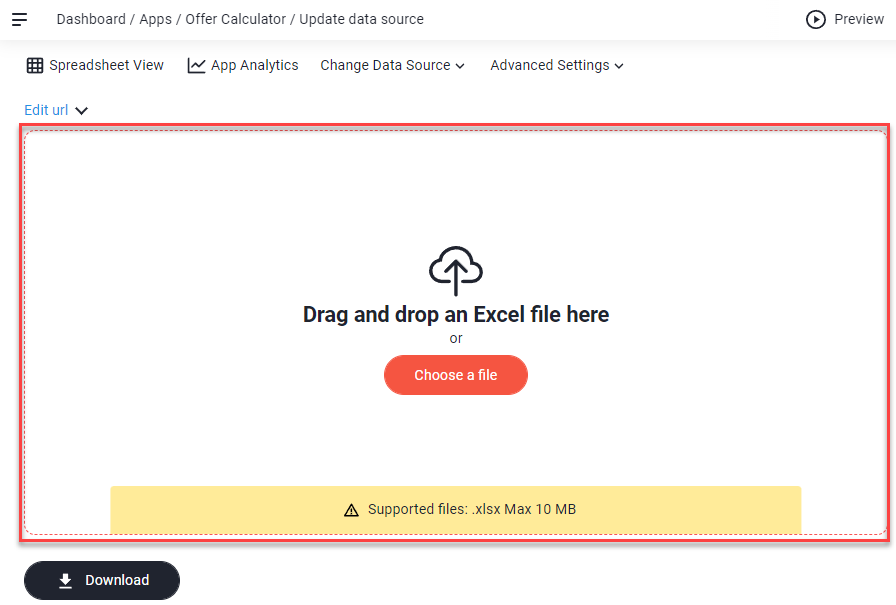
- Upload a new Excel file from your computer. (Click or drag & drop in the box.)
- Save the changes and update your app.
Using the 'Download' button, you can download the current spreadsheet of the app.
Change storage from Open as App Cloud to OneDrive/SharePoint
You have created the app with a file you uploaded directly from your computer and now your file is hosted online in your OneDrive/SharPoint?
- Open the Editor of your app.
- Navigate to "Update data source".
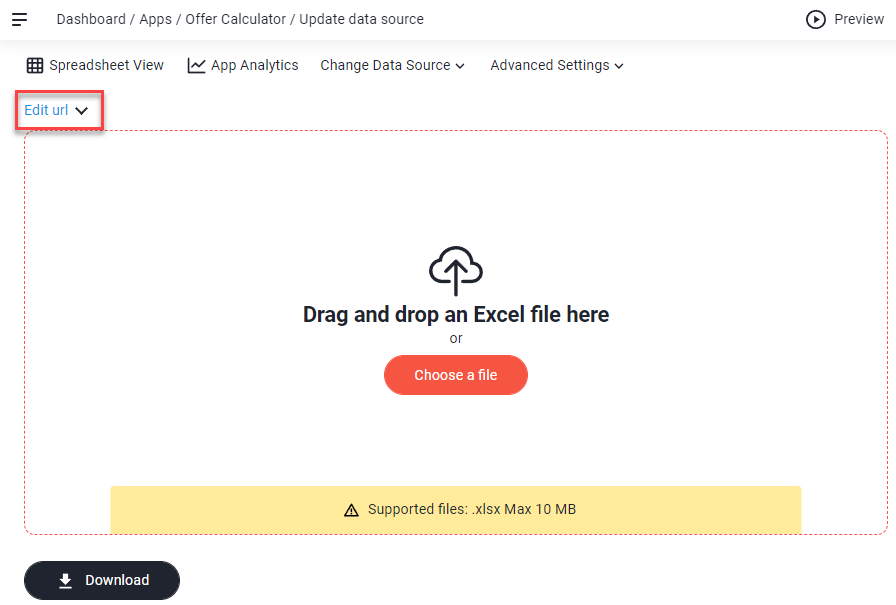
- Click "Edit url".
 \
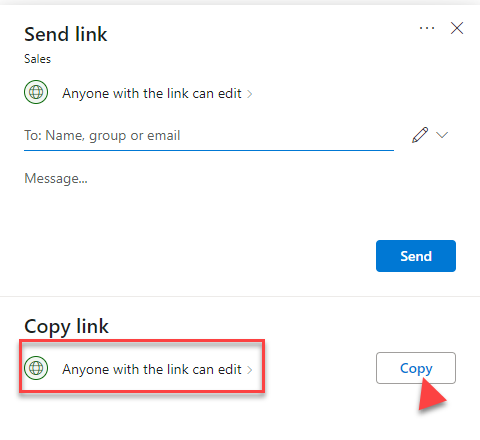
\ - Paste in the link of the online hosted (OneDrive/SharePoint) file.
- Save the changes and update your app.
Change storage from Open as App Cloud to Dropbox
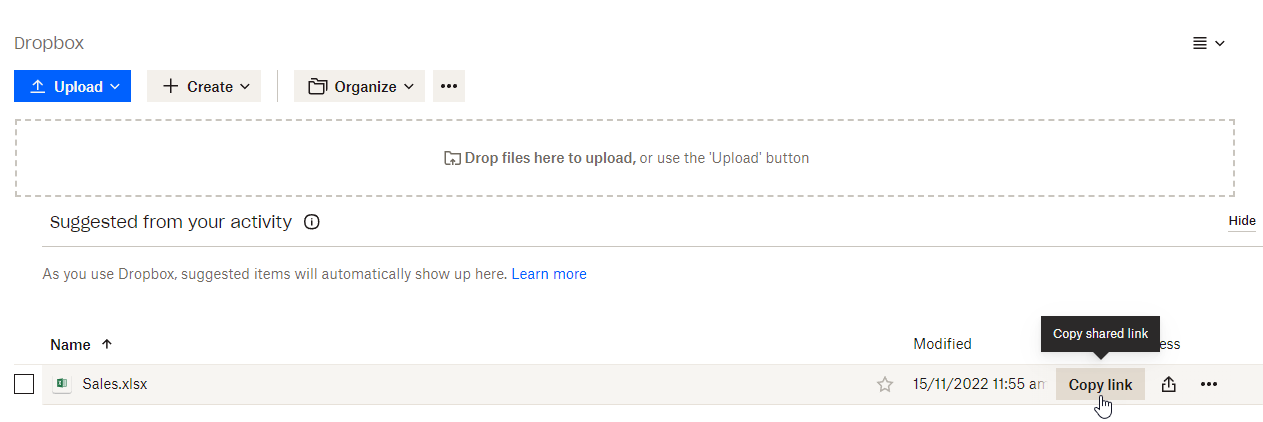
You have created the app with a file you uploaded directly from your computer and now your file is hosted online in your Dropbox?
- Open the Editor of your app.
- Navigate to "Update data source".
- Click "Edit url".\
- Paste in the link of the online hosted (DropBox) file.
- Save the changes and update your app.
Change storage from Open as App Cloud to Google Sheets (Google Drive)
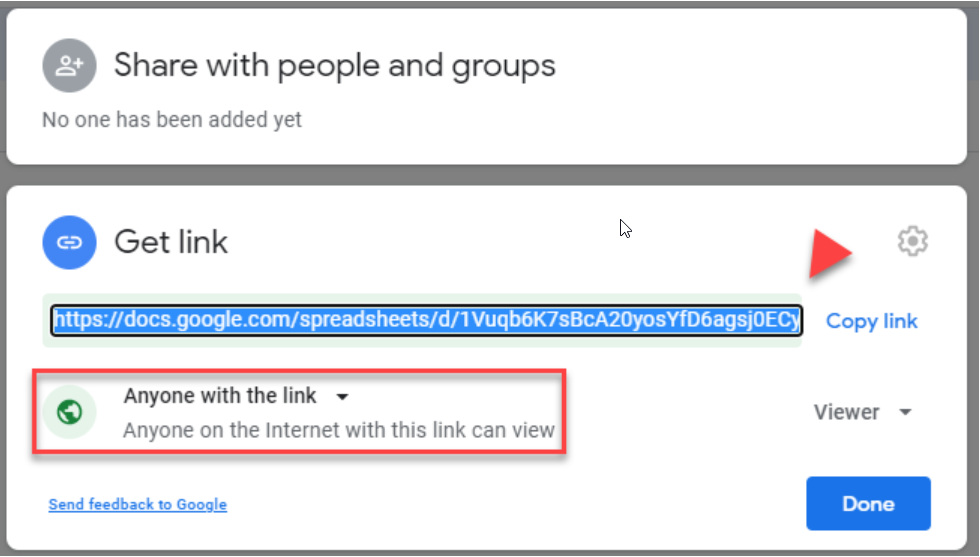
You have created the app with a file you uploaded directly from your computer and now your file is a google sheet?
- Open the Editor of your app.
- Navigate to "Update data source".
- Click "Edit url".
- Paste in the link of the online hosted (Google Drive) file.
- Save the changes and update your app.
Change storage from Dropbox/Google Sheet to the Open as App Cloud
To do this, proceed as described in point 'Update the source file of your app' .
This way, you overwrite the link to the respective storage and automatically generate a URL to the spreadsheet in the Open as App Cloud.
.