
User Management
User administration with Open as App allows you to decide which users are allowed to use certain apps. This gives you full control over your data, as you always have the ability to remove entire groups or individual users.
DEFINITIONS: TEAM, TEAM MEMBER, GROUP
In this article, you will get the basic knowledge about how to make your app available to other people. The advantage over sending an Excel spreadsheet or static PDF file via e-mail is clearly in the flexibility, actuality, usability, and the continuous access control over your own data.
User administration is managed in the "Team Admin" area of the portal » www.openasapp.net/portal#!/teams/admin
TEAM
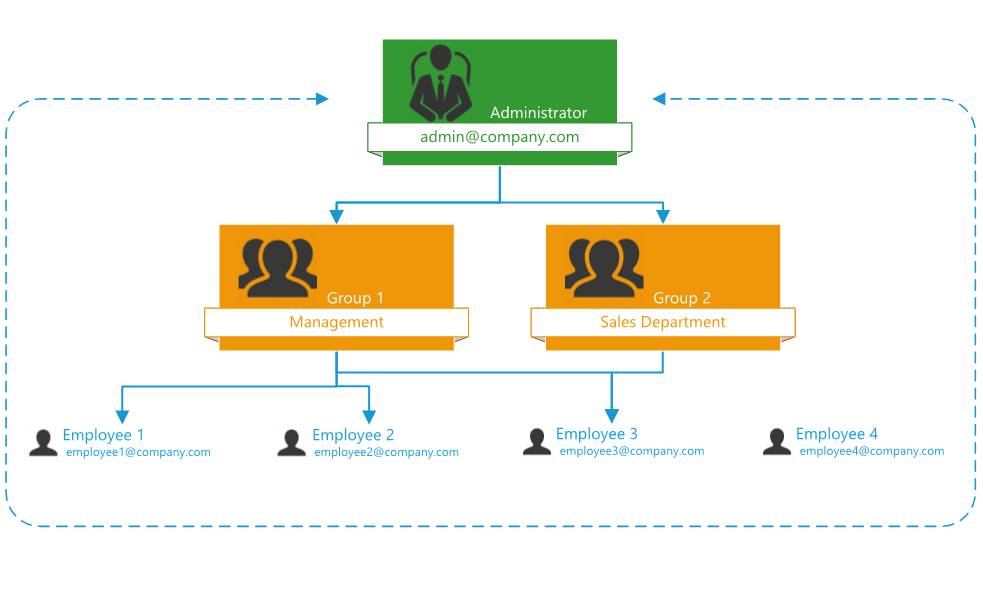
In the hierarchy, the "team" is at the top. Typically, the "team" is your entire company, managed by an administrator. Only one team can be created per account.
 TEAM MEMBER person
A "member" is an user that is granted access to selected apps. Members are automatically part of the entire "team" and can use apps shared with the "team".
In addition, you can assign members to groups to grant access to apps that are only available to specific groups.
You have the option to invite new members via e-mail to your team - and thus to Open as App.
GROUP people
You can organize invited team members in different groups. For example, in "Management" and "Sales" groups. There are different members in each group, but the assignment of a member to several groups is possible.
This way, you can not only share your app to individual members, but to a particular group of people, such as salespeople. If an employee changes the department, simply move him or her into the new “Management” group, depriving him of the access to the “Sales” app and giving him access to the “Management” apps - with just a few clicks through group administration.
TEAM INFORMATION
User administration begins with the creation of a team, which by default is named after your account.
To change the name of your team, proceed as follows:
- Go to the "Users" area.
- In the "Team Info" menu item you can find basic information and can change the team name.
- Save the changes by clicking on the icon at the top right.
You can invite members to this team and arrange them into groups. The team name appears, for example, in the e-mail with the invitation or on the member's terminal.
- The team name should be chosen so that invited users can "identify" it. As a rule, the company name is entered.
- In addition to the team name, the invited person can also see the e-mail address of the admins.
- The team name can be changed at any time by the admin.
INVITE PEOPLE AS TEAM MEMBER
Team members are invited by email in the "Users" view.
- Go to the "Users" area.
- Click the "Add" button.
- Enter the email address of the person you want to invite to your team.
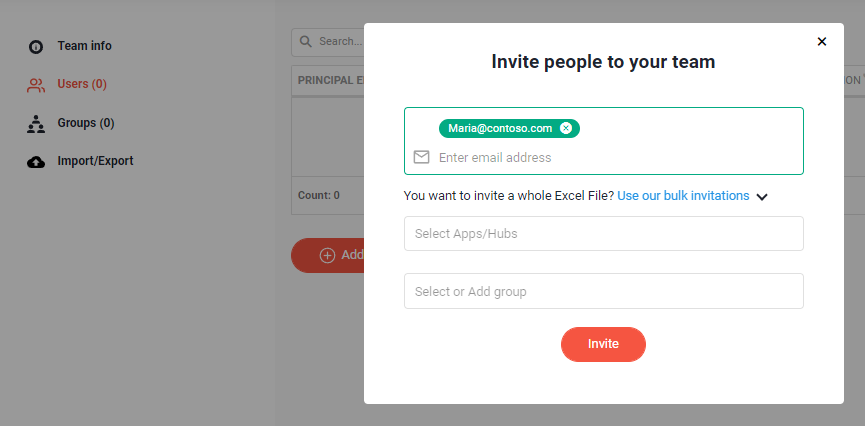
- Click the "Invite" button to send the invitation.
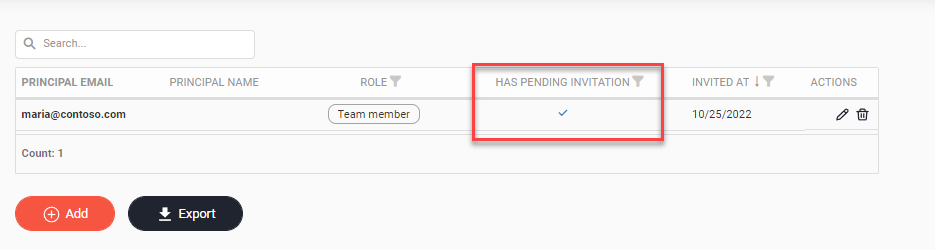
- The email address of the person you invited, shows you information on whether the invitation has already been accepted or is still "pending".
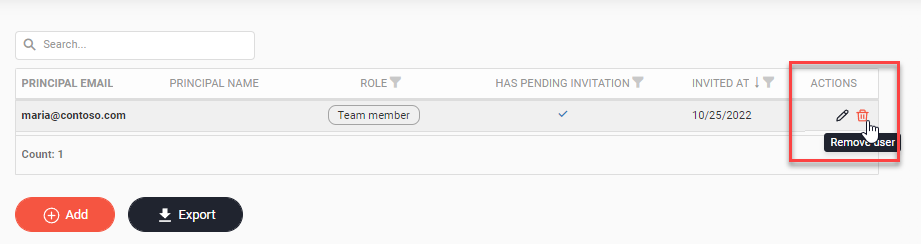
- By clicking on the trash can icon by the respective persons email address, you can withdraw the sent invitations. The person will then be unable to accept the invitation and will not be added to your team.
CREATE AND MANAGE GROUPS
With "Groups" you have the possibility to divide your team members into smaller units and thus manage even more comfortable the rights of use on your apps. Each of your team members can be added to multiple groups.
- Go to the "Users" area.
- Navigate to the “Groups” view.
- Enter a group name.
- Click on the "Add Group" button.
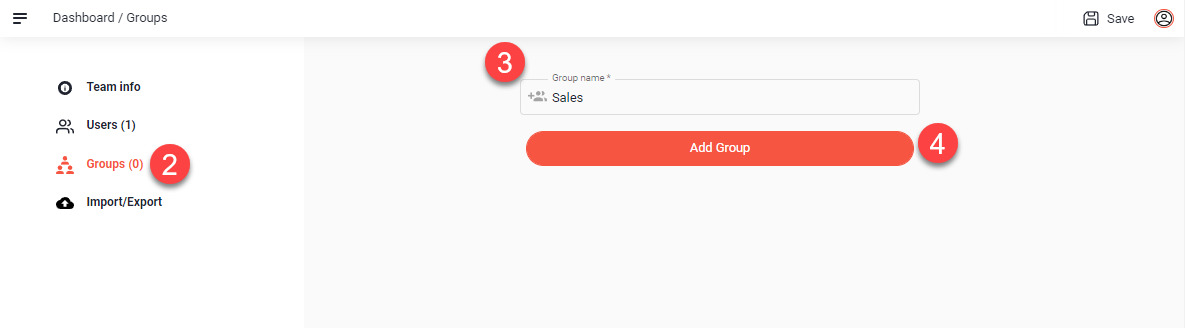
The group is created immediately, and you can add team members directly to this group.
ADD MEMBERS TO THE GROUP
Through the "Edit Group" pop-up window, you can add individual team members to this group.
- Go to the "Users" area.
- Navigate to the “Groups” view.
- Select the respective group.
- In the left area ("Users not in-group"), select the user that you want to add to the group.
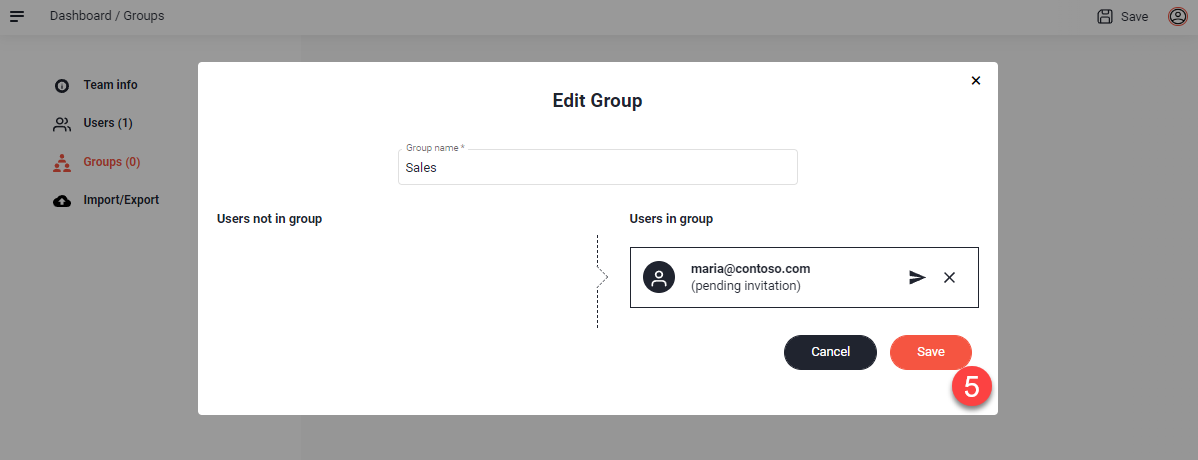
All members of the group are listed on the right.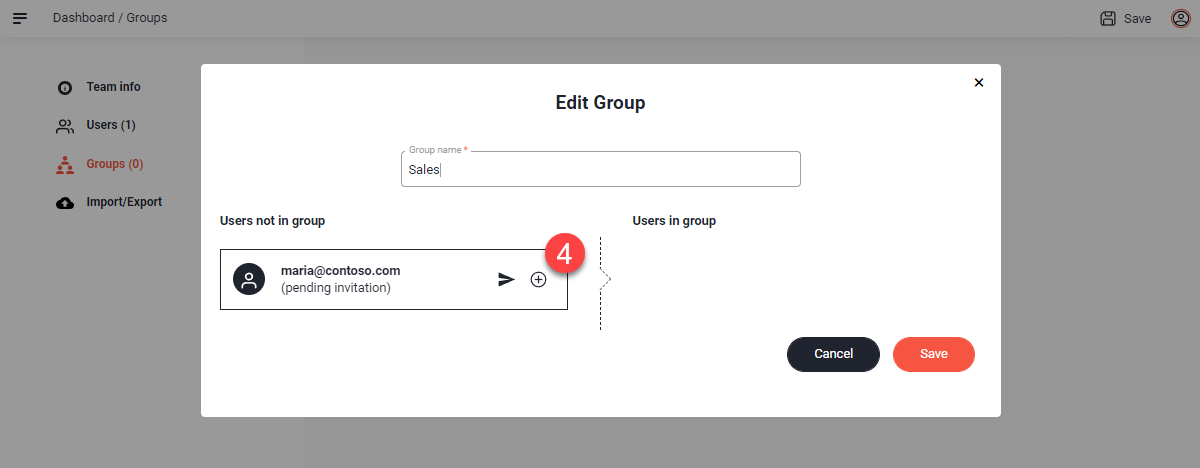
- Confirm your selection by clicking on "Save".
EXTENDED USER MANAGEMENT
If you are using an Enterprise license, the roles that are available to you as administrator for your users are extended by two additional roles, the Team admin and the Creator. In the separate article "Extended User management" you will find a description of the additional possibilities that this gives you.